A customer asks for a PI or a quotation late at night. Don't type it all in by hand. Paste the chat log or email into AI auto-fill, give it a once-over, and export the PDF. Filling in the form and printing cost nothing, no sign-in needed.
It's one or two in the morning. You're at your computer, fixing a quotation, rushing a PI, eyelids drooping. The customer is on WeChat pushing you: “Send it over and I'll pay.” Would you really answer, “I'll send it tomorrow”? The more orders you get, the more PIs, CIs and quotations you build by hand: half the time spent on formatting, every number checked twice. One document out the door takes half an hour at least. It's pure grind.
Foreign trade doesn't have to be this much hassle. Use the tool, work faster: open it, type in the numbers, export the PDF. Two or three minutes and it's with the customer.
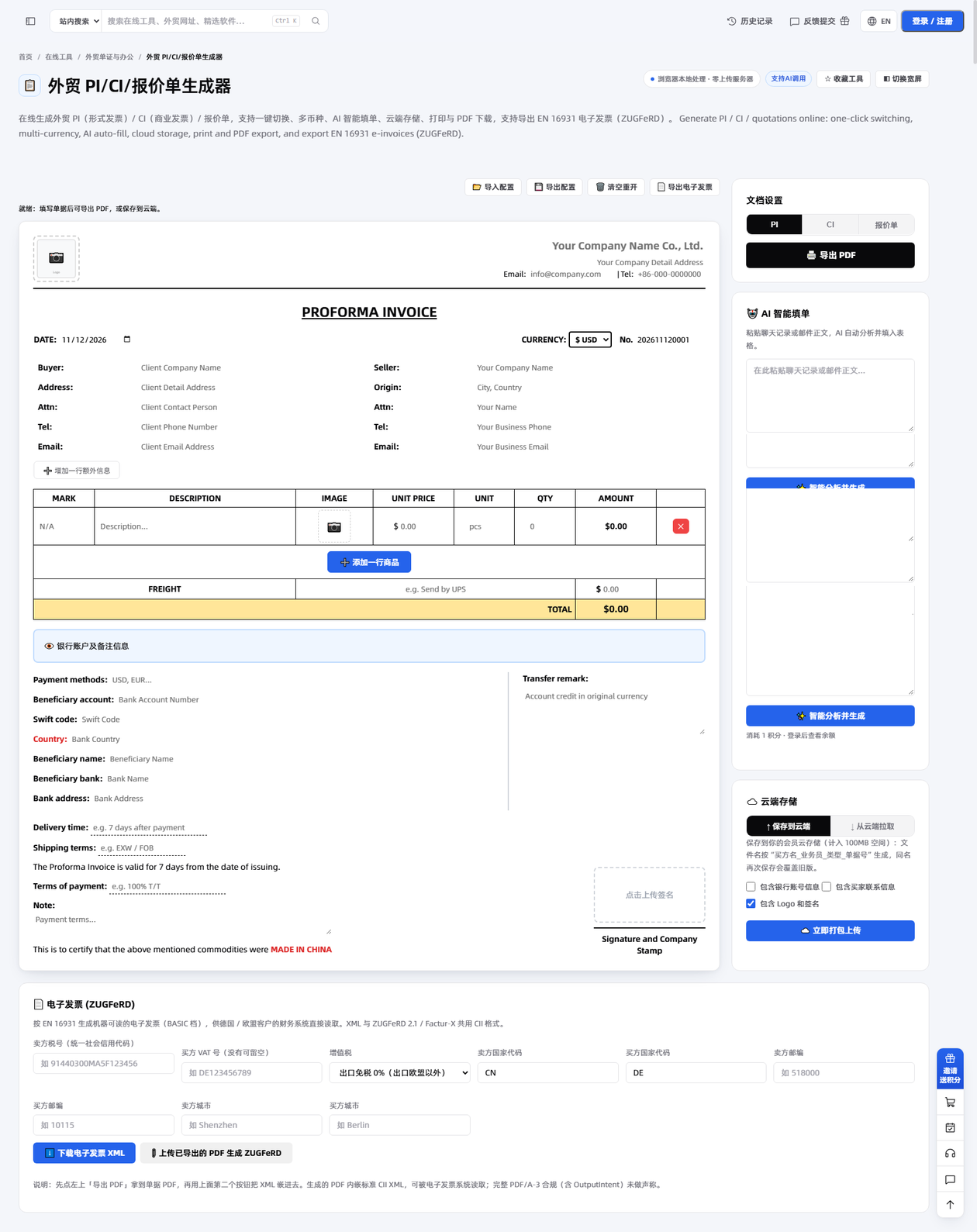
The good parts first
- Filling in the form, printing, exporting JSON: all free. Open the page and go, no sign-in.
- Filling in and printing happen in your browser. Nothing goes to a server. AI auto-fill and cloud storage need a network connection.
- AI auto-fill: paste in a chat log or an email, and the form fills itself. Check it, export the PDF.
- AI can use it directly: an MCP prefill link, or let AI drive the browser.
The template is fixed. You don't lay out a spreadsheet yourself, and amounts add themselves up. One template for now. More are planned, so you'll have a choice.
AI auto-fill: paste it in, check it once
Chat logs and email bodies can be as messy as they like. Paste them into the fill box on the right, and the model pulls out the buyer, the products, the delivery date and the payment terms, and puts them in the form. Don't paste too much at once. Stay within 20,000 characters and it works fine.
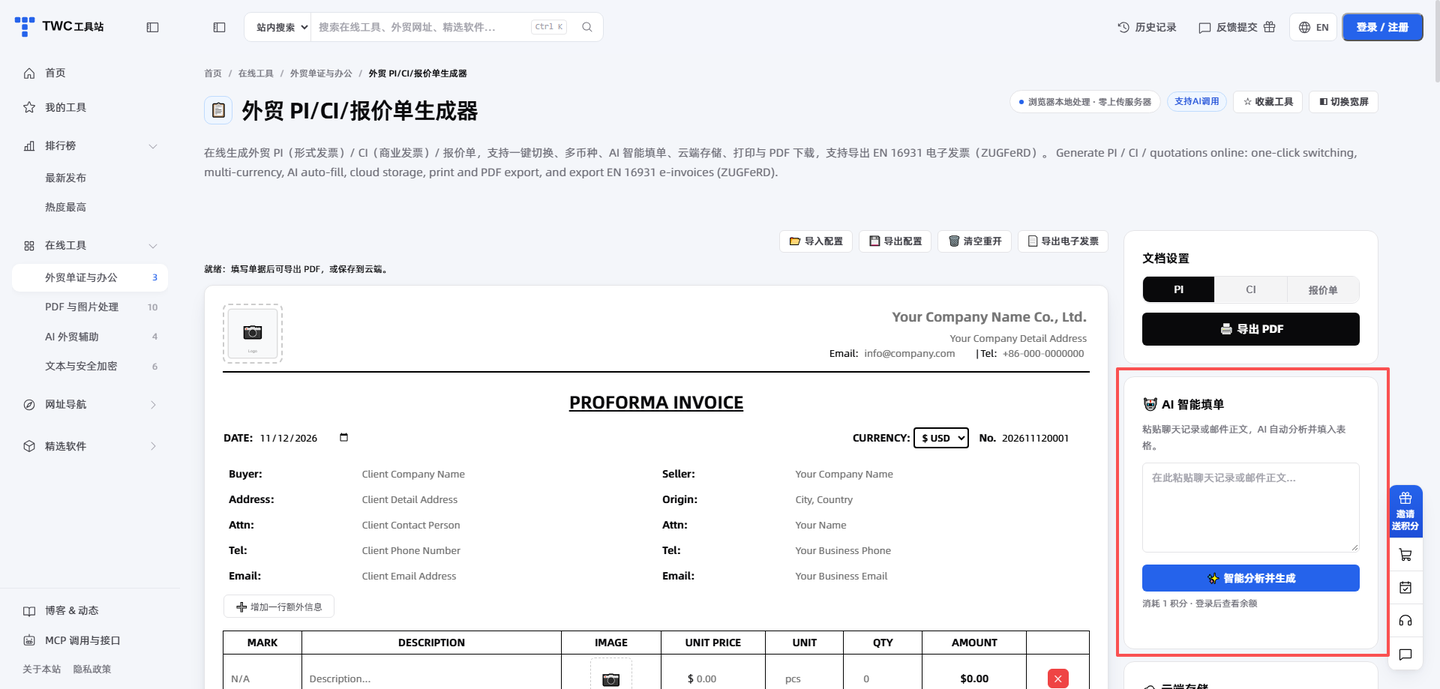
- Paste a chat log or an email body into the AI auto-fill box on the right.
- Click 「Analyze and autofill」, and the form is filled in. AI auto-fill needs a sign-in, and the Platform channel charges credits. With your own keys, no charge.
- Go over the buyer name, amounts, currency and delivery date yourself. Fix what's wrong, right there.
- All good? Click 「Export PDF」 on the right. The browser print dialog saves it as PDF. Send it to your customer.
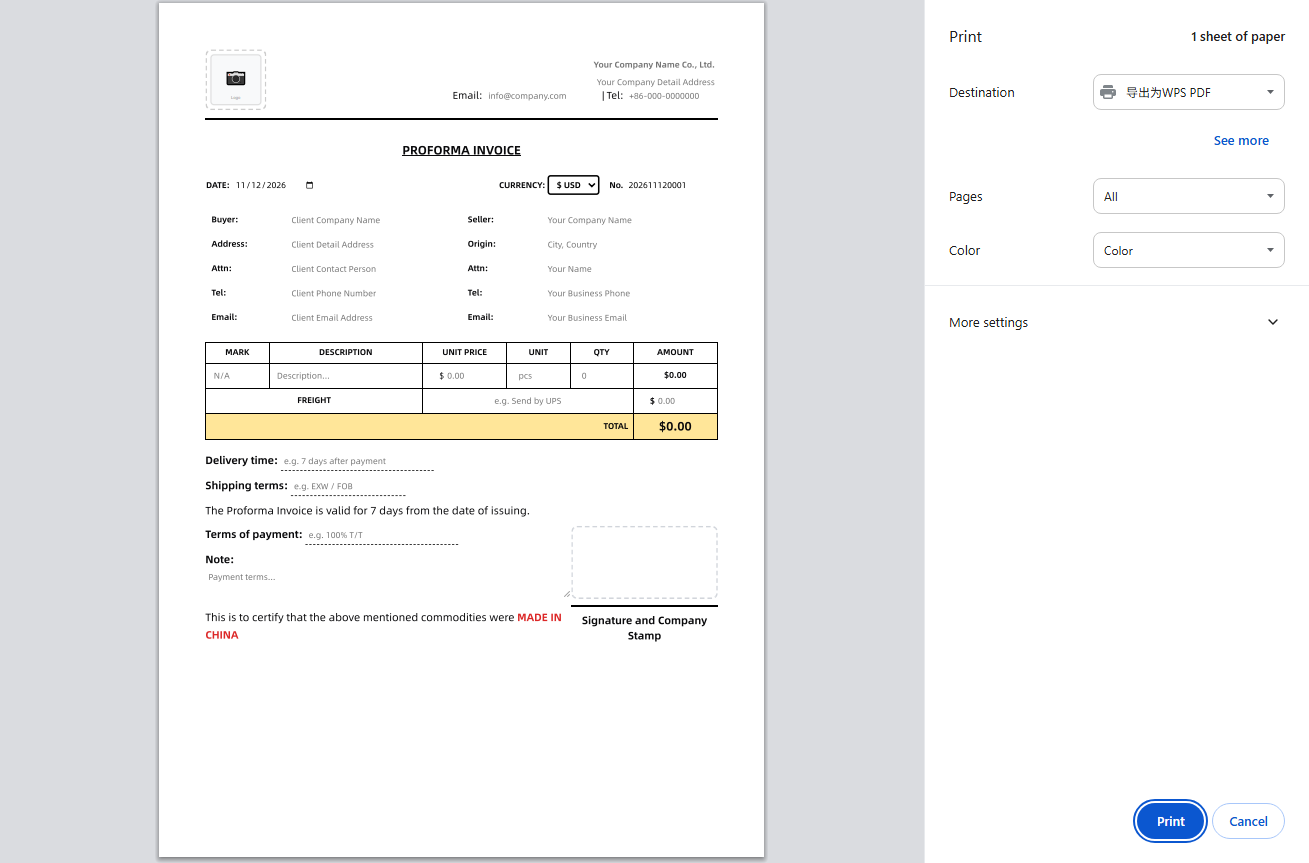
A PDF cannot be edited. How do you keep the document?
A PDF sent out can't be changed. You'll ask: what if I need to change it later? That's what Export config is for. The whole document saves as one JSON file. Next time, click 「Import config」, pick that file, and the form comes back as it was. Keep going from there.
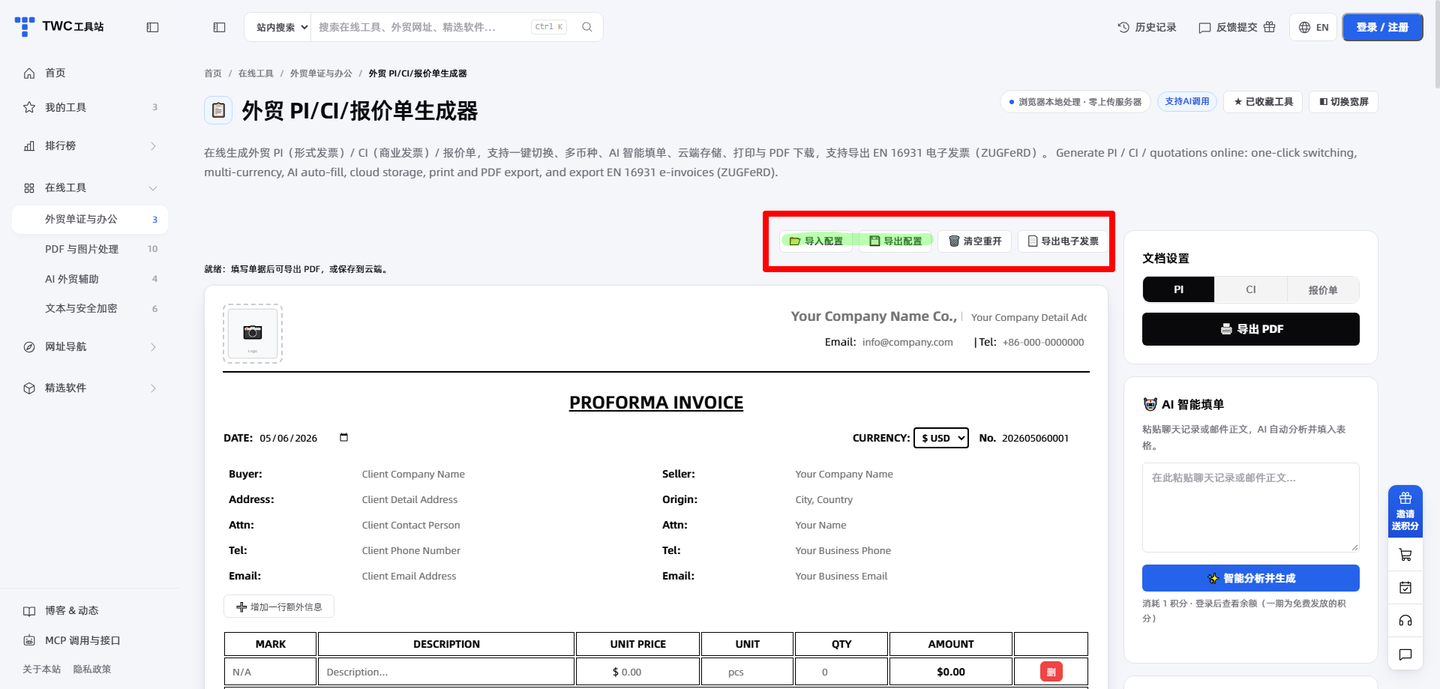

The file name looks like this: Local_UnknownClient_NoSales_PI_202605060001.json. Local_ first, then buyer name, salesperson, document type, document number. No buyer name, and it writes UnknownClient. No salesperson, and it writes NoSales.
JSON is one of three ways. Which one?
| Way to save | Stored in | Continue on another device | When to use |
|---|---|---|---|
| Browser storage | In your browser, on this computer | No | Same computer, picking up where you left off |
| JSON config backup | A JSON file on your computer | Yes, carry the file over and import it | Switching computers, or keeping a copy for good |
| Member cloud storage | Cloud storage, counting toward 100MB | Yes, sign in and fetch it | Several devices, pulling old documents any time |
Importing and exporting every time gets old, right? Browser storage needs no clicks from you. The content saves itself in your browser as you type. Open the same browser again, and it loads straight back up. To start fresh, click 「Clear and start over」 at the top. One click turns it into 「Confirm clear?」. Click again, and it's cleared.
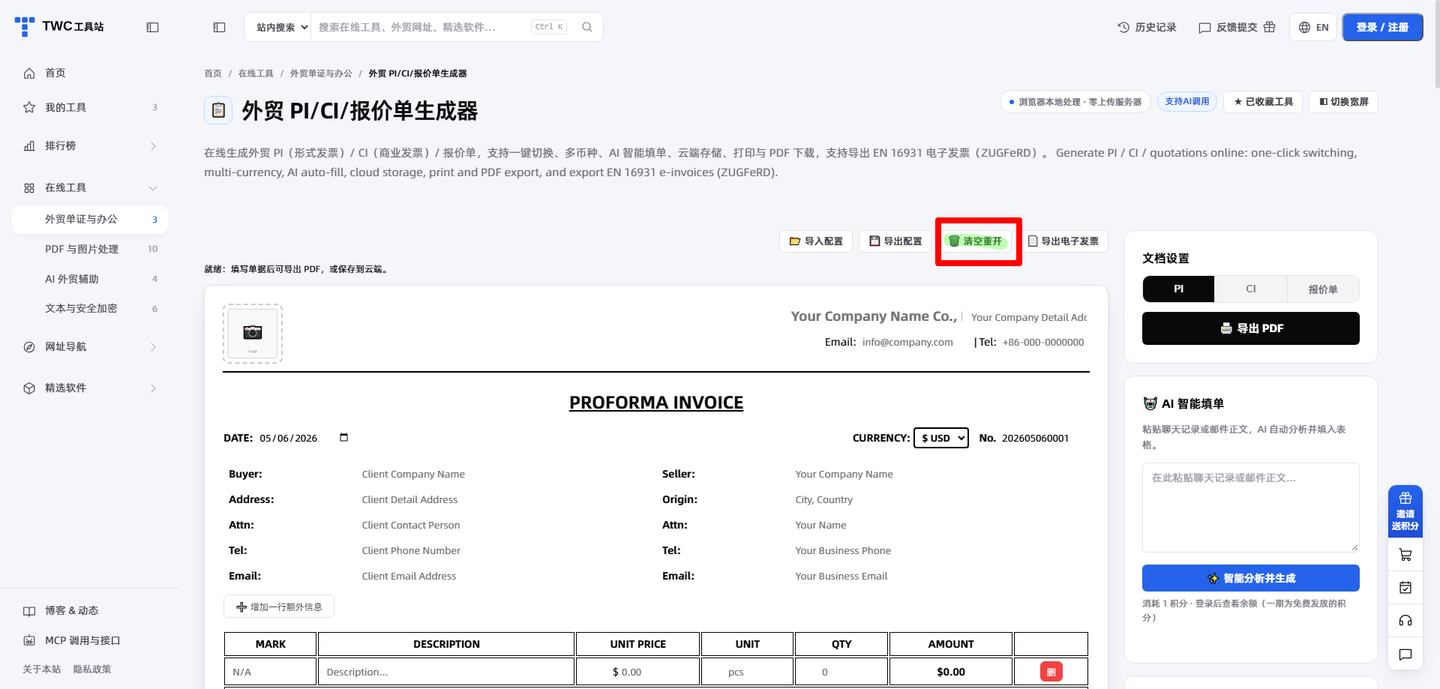
Need to pick it up on another computer? That's what cloud storage is for. Cloud storage needs a sign-in. Pick the 「Save to cloud」 tab on the right, click 「Pack and upload now」, and the document saves as JSON in your member cloud storage. Saving under the same name overwrites the older copy. The two checkboxes for bank and buyer info start unchecked. Unchecked, and the bank info, buyer address, phone and email don't get saved up there. The buyer name stays as Confidential_Client. The file name still carries the buyer name.
Want it back? Pick the 「Fetch from cloud」 tab, search the file name in the dropdown, pull one back and keep editing. Cloud storage counts toward your 100MB quota.
For EU customers: add an e-invoice
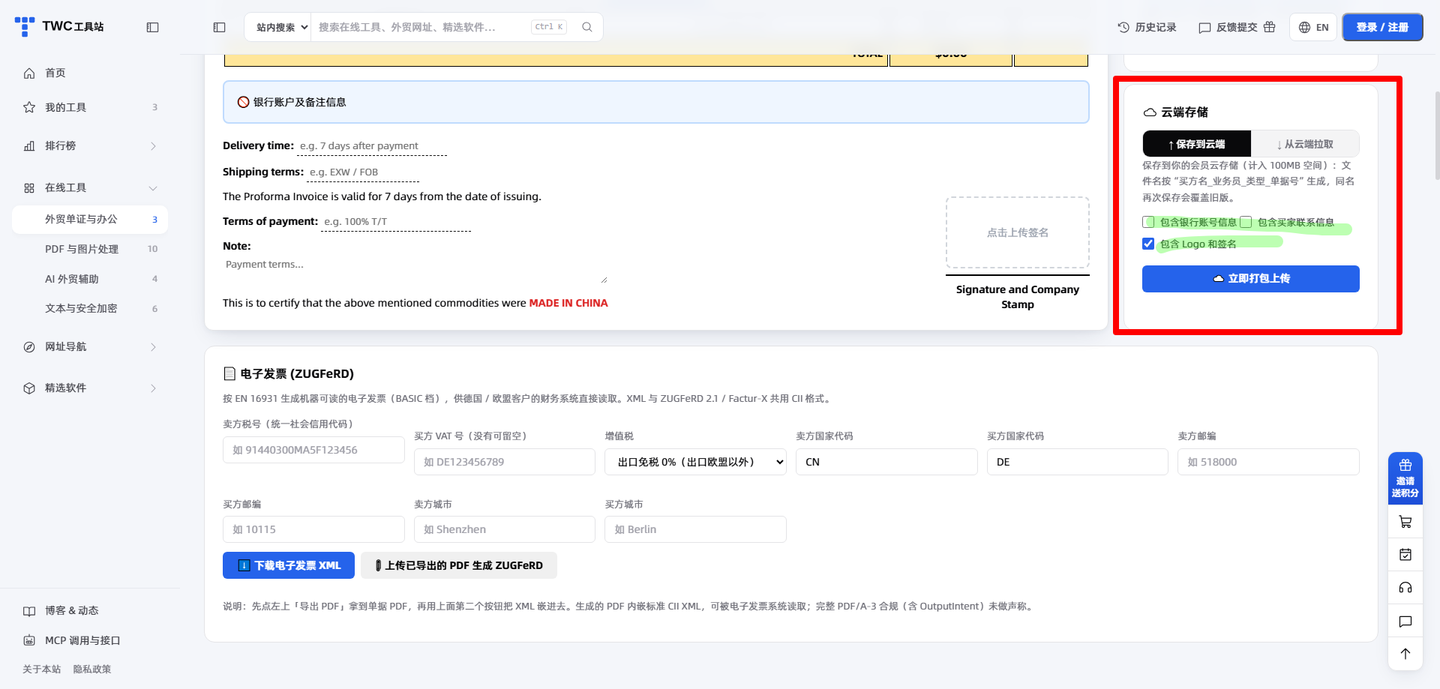
Finance systems at German and EU customers can read a machine-readable invoice directly. This tool produces the BASIC profile: a CII XML file in the EN 16931 standard tucked inside the PDF.
Click 「Export e-invoice」 at the top to jump to the panel at the bottom. Fill in the seller tax number, the buyer VAT number (leave it blank if there is none), the postcodes, cities and country codes for both sides (default CN, DE). VAT is 0% export exempt by default. 「Download e-invoice XML」 gets you factur-x.xml. Or export the PDF first, then use 「Upload an exported PDF to make ZUGFeRD」 to tuck the XML inside.
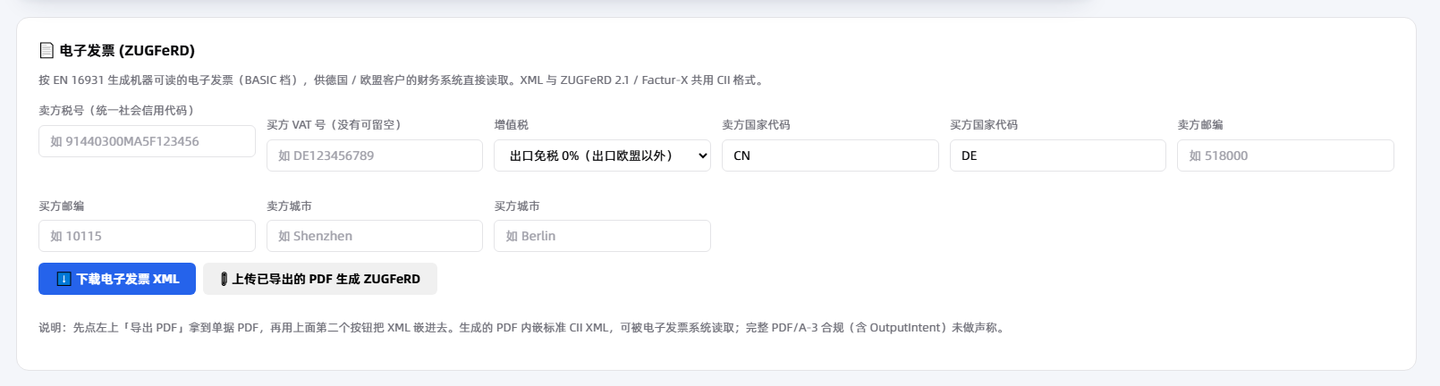
The embedded XML is a standard CII structure that e-invoice systems can read. We make no claim about full PDF/A-3 compliance, including OutputIntent. Before a strict check such as veraPDF, add the OutputIntent with a professional tool and verify again.
Let AI make the document for you
AI can make the document directly. MCP has a tool called build_pi_ci_link. It makes a prefill link: AI puts the customer, the products and the prices into the link, and the data stays in the #fragment of the link, never passing through a server. Open the link and the document is already filled in. Check it, print it as PDF. You can also just tell an AI, in one sentence, to open the tool page and work on it: Open tools.waoww.com/tools/pitool/, and make a PI for ABC Trading: 100 stainless steel water bottles at 12.5 US dollars each, FOB Shenzhen.
Next time a customer asks for a document late at night, paste the text, check it once, export the PDF. Three steps and it's on its way. 👉 Open the PI / CI / Quotation Generator now, paste a chat log, and try AI auto-fill once.