You can make a social media cover image without installing design software: open MicaCover, write a topic, pick a size, pick a background, adjust the text, and export. Five steps. Fourteen platform sizes in one dropdown, export as PNG, JPG or WebP, and the core features are free with no sign-in.
Every post needs a cover image. Xiaohongshu wants 3:4, a WeChat official account header wants 2.35:1, an X post card wants 16:9. The sizes are hard to remember, and switching platforms means making the image again. Desktop design software is slow to open, and editing template text in a phone app means tapping through one field at a time. MicaCover is the cover image maker on this site. It opens in the browser, and one workbench covers size, background, text and export.
Five steps to a cover image
- Write a topic: type a title in the box at the top of the left panel, or paste a title with a short paragraph, up to 500 characters. To let AI write the title, click 「AI title expansion」. Pick one of four styles and the generated main title, subtitle and style badge apply to the canvas in one click. AI title expansion needs a sign-in and costs 1 point per generation.
- Pick a size: choose a platform in the 「Size preset」 dropdown. There are 14, covered in the next section.
- Pick a background: switch between gradient, solid colour and image in the background area on the left. Eight gradients are built in, a colour picker handles solid colours, and images can be uploaded from your computer or picked from the stock library with 「Get a stock photo」. The library needs a sign-in.
- Adjust the text: click text on the canvas to edit it, or select a layer in the layer list on the right and edit it in the text box below the canvas. Font size and X/Y position take numbers directly, and you can also drag on the canvas.
- Export: in the export area on the right, choose PNG, JPG or WebP, scale 1x or 2x, default 2x. Click 「Download」 to get the image, or click 「Copy」 to paste it into an editor.
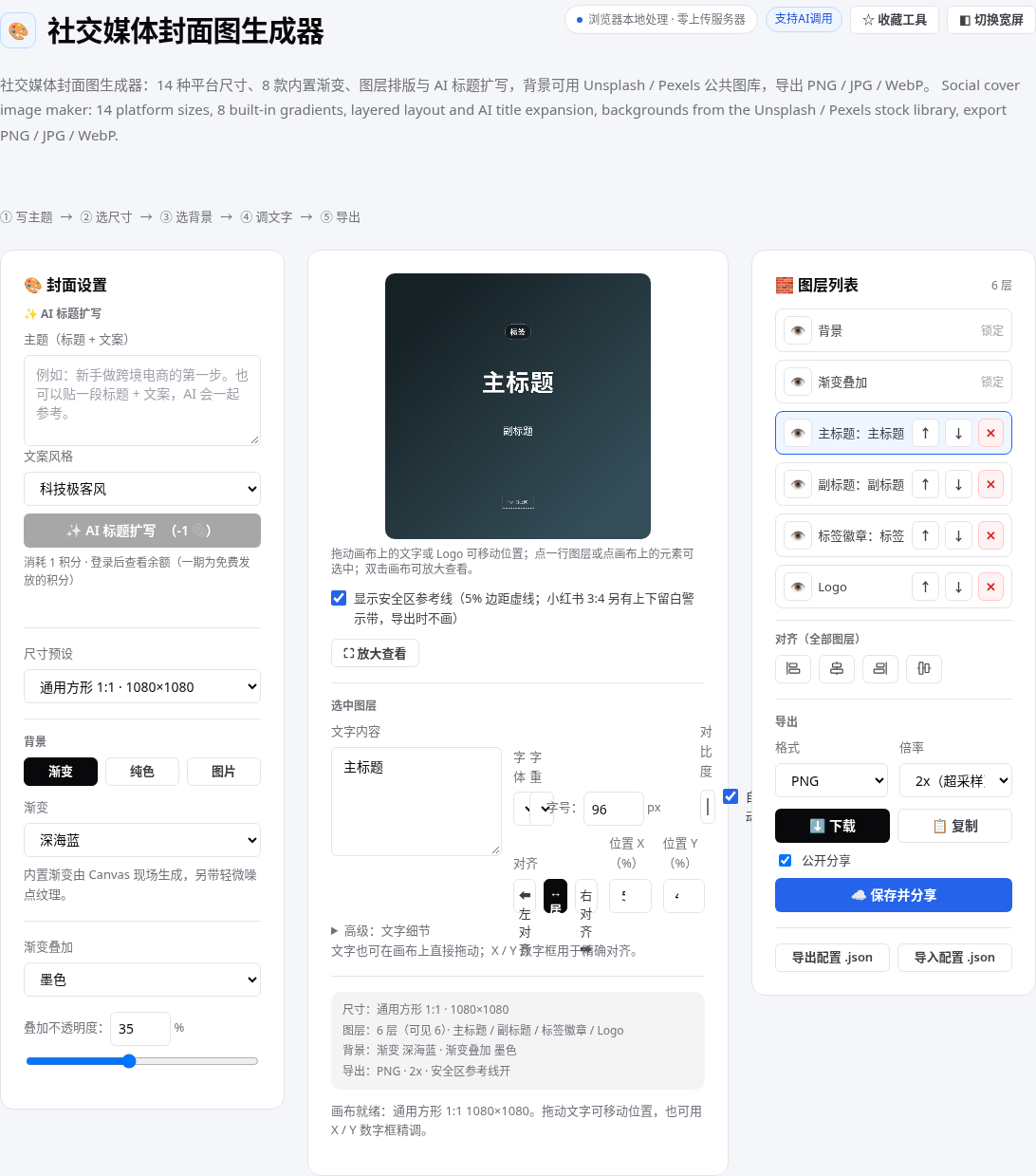
Sizes: 14 presets in a dropdown
Five for Chinese platforms: square 1:1, Xiaohongshu 3:4 (1242×1660), Juejin / Zhihu 4:3, X post card 16:9, WeChat official account header 2.35:1. Nine more cover Facebook, Instagram, X, LinkedIn, YouTube and Pinterest. Switching sizes scales the text by the canvas width ratio and keeps the positions proportional. The 5% safe-zone guides show in the preview only and are never exported.
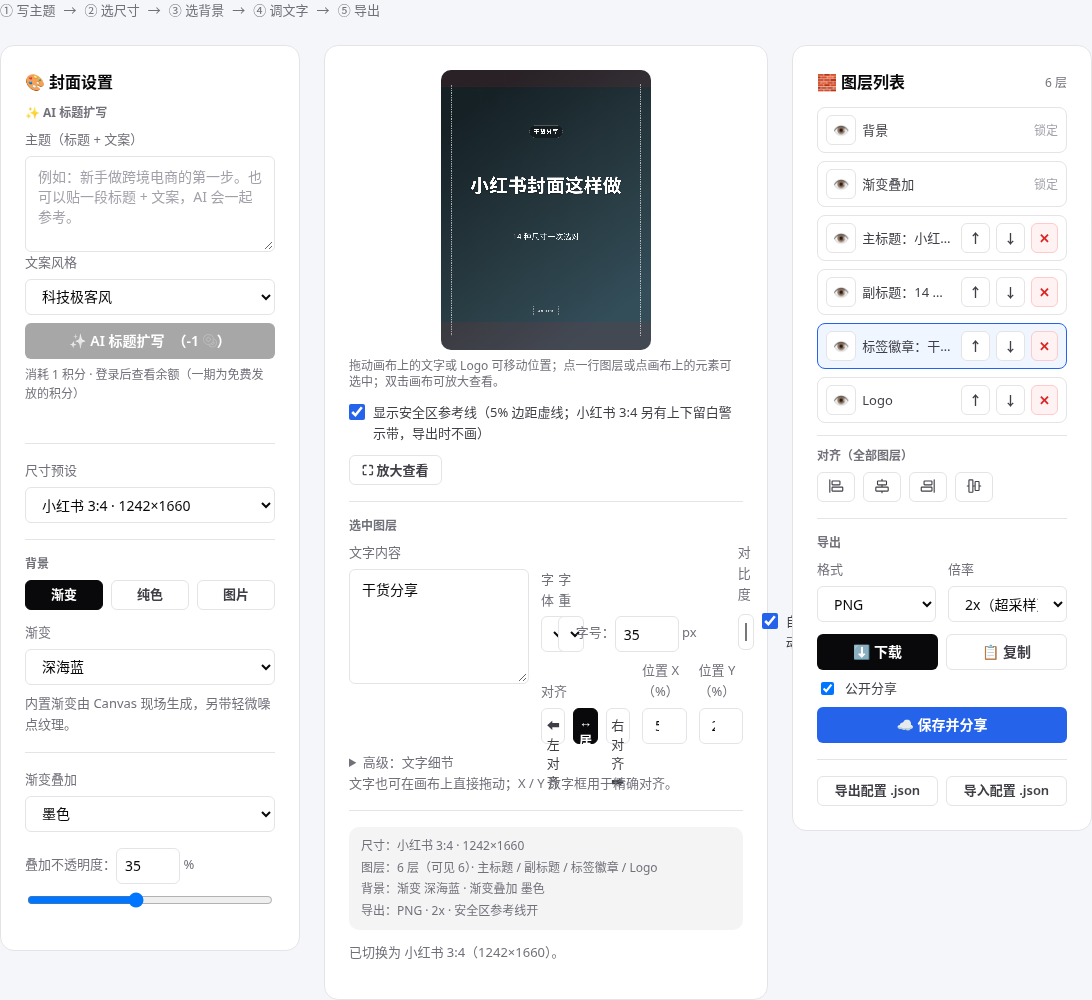
Backgrounds: gradient, solid colour or image
Eight gradients are built in: deep sea blue, sunset orange, dark green, ink black, dusk purple, emerald green, rose pink and pale lilac. They are drawn on canvas with a light noise texture. Solid colours come from a colour picker. Images come from a local upload or the stock library, one file up to 20MB, PNG, JPG or WebP only. A background image can fill the canvas or fit inside it, and position, blur and darkening can all be adjusted, with another gradient layer on top to darken the background. The stock library draws on Unsplash and Pexels and is open to signed-in users only. Opening the picker, the AI reads the current topic and suggests the best English search words. The main word goes into the search box for one search, alternatives sit below it, and clicking one searches again with that word. Each source returns 10 images per search, 20 on the All tab. Each analysis costs 1 point, BYOK is free, and the same topic is analysed once per page session. If you publish the cover, credit the photographer: every image shows the photographer name below it.
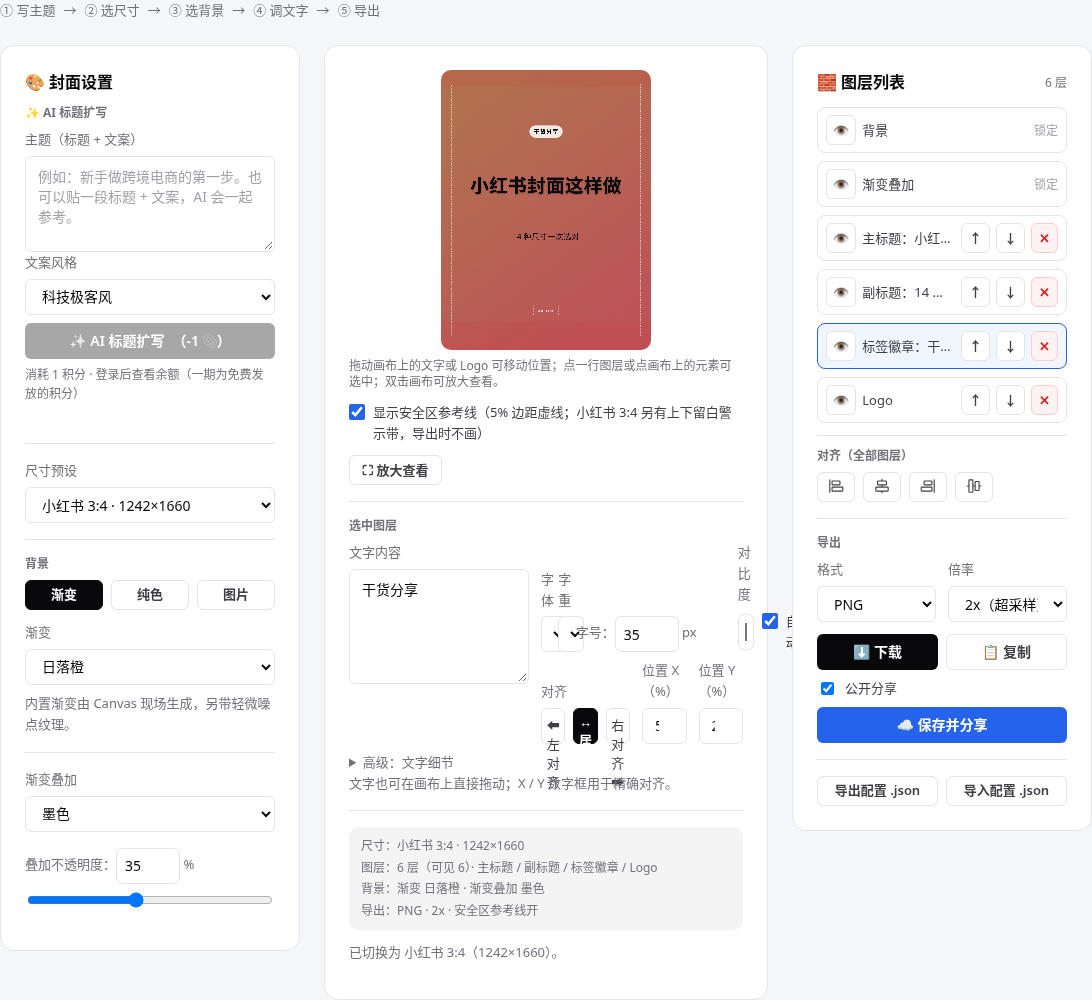
Text and layers: layout lives in the layers
The canvas has 6 layers: background, gradient overlay, main title, subtitle, badge and Logo. The first two are locked. The other four are managed in the list on the right: click a row to select it, click 👁️ to hide it, click ↑ ↓ to reorder, click the red ✕ in the top-right corner to delete it, and a deleted layer can be added back from below the list. The list also has 4 align buttons that align everything in one click.
Text styles are set in the editing area below the canvas: three font stacks, weights 400 to 900, font sizes typed as numbers, main title 96 by default, subtitle 40, badge 30. Colour is automatic by default, switching between white and dark text by background brightness; picking a colour by hand turns the automatic mode off. Letter spacing, line height, shadow and outline sit under 「Advanced: text details」. Text and the Logo can be dragged directly on the canvas, and the X/Y number boxes update together.
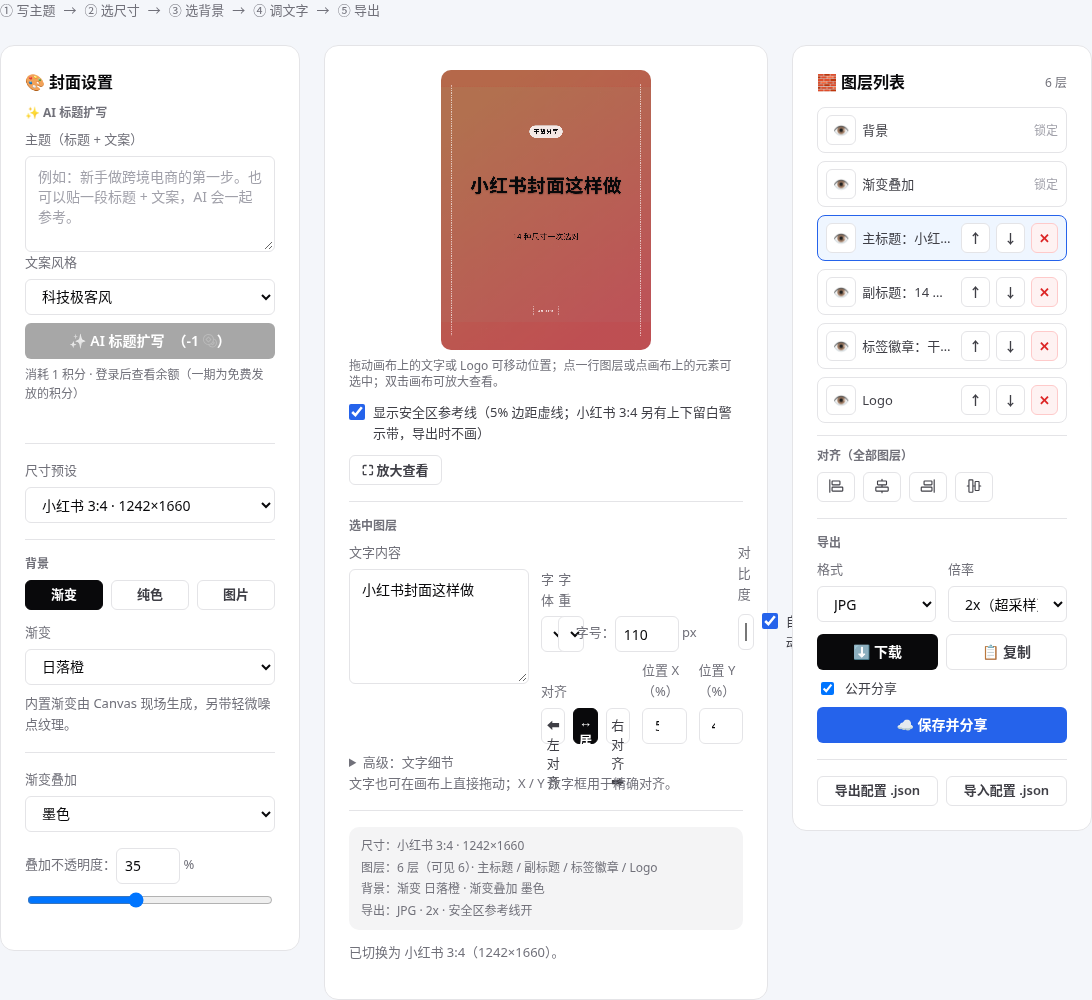
Export and share: download first, then decide about going public
Export as PNG, JPG or WebP, at 1x or 2x, default 2x. Click 「Download」 to get the image; the file name carries the preset name. Click 「Copy」 to copy the image to the clipboard, always as PNG, and paste it into an editor. Everything is made locally in the browser, and nothing is uploaded unless you save it.
To share on social media, click 「Save & share」. The cover is saved to cloud storage and counts toward the 100MB space. 「Publish」 is checked by default: checked, it is set public and a public link is generated, and clicking the X, Pinterest, Facebook or LinkedIn icon opens that platform to share. Unchecked, it stays private. Clicking 「Unpublish」 makes the link stop working at once, while the image stays in cloud storage. Instagram, Xiaohongshu and WeChat have no web share entry, so download the cover image and use 「Copy caption」 to paste the text into the app.
Which of the three approaches to use
| Approach | Sizes | Layout | Switching platforms |
|---|---|---|---|
| MicaCover | 14 platform sizes in one dropdown | Layers with align buttons, drag on the canvas | One dropdown switch, text scales automatically |
| Desktop design software | New canvas, enter width and height by hand | Layers and guides, complete | New canvas, lay it out again |
| Phone photo app | Templates grouped by platform | Mostly drag to edit text | Find a new template, make it again |
Two things to watch for Xiaohongshu covers: keep the main title under 12 characters and make the type large, so it reads at a glance in the phone feed. Keep key information out of the top and bottom blank-margin warning bands, where the feed covers it up.
👉 Open the Social Media Cover Maker now and make a cover in the five steps above: pick a size first, write the title, export JPG at 2x.